That Email Looks Sketchy
You get an email that seems off. Maybe it's your "bank" asking you to verify your account, a shipping notification you weren't expecting, or a message from a colleague that just doesn't sound like them. Your gut says something's wrong, but you're not sure what to look for.
This is exactly the kind of situation where AI can help. ChatGPT, Claude, and Gemini are surprisingly good at spotting the red flags that indicate phishing attempts, scams, and spoofed messages.
Why AI Is Good at This
AI assistants have been trained on countless examples of both legitimate and fraudulent emails. They can quickly identify patterns that humans might miss: unusual phrasing, pressure tactics, suspicious sender domains, and formatting inconsistencies that scammers often overlook. Best of all, you don't need to be a security expert to benefit from their analysis.
How to Do It
The process is simple. Copy the suspicious email's content and paste it into your preferred AI assistant with a request like this:
PROMPT
I received this email and I'm not sure if it's legitimate. Can you analyze it for signs of phishing, scams, or other red flags? Here's the email:
[Paste email content here]
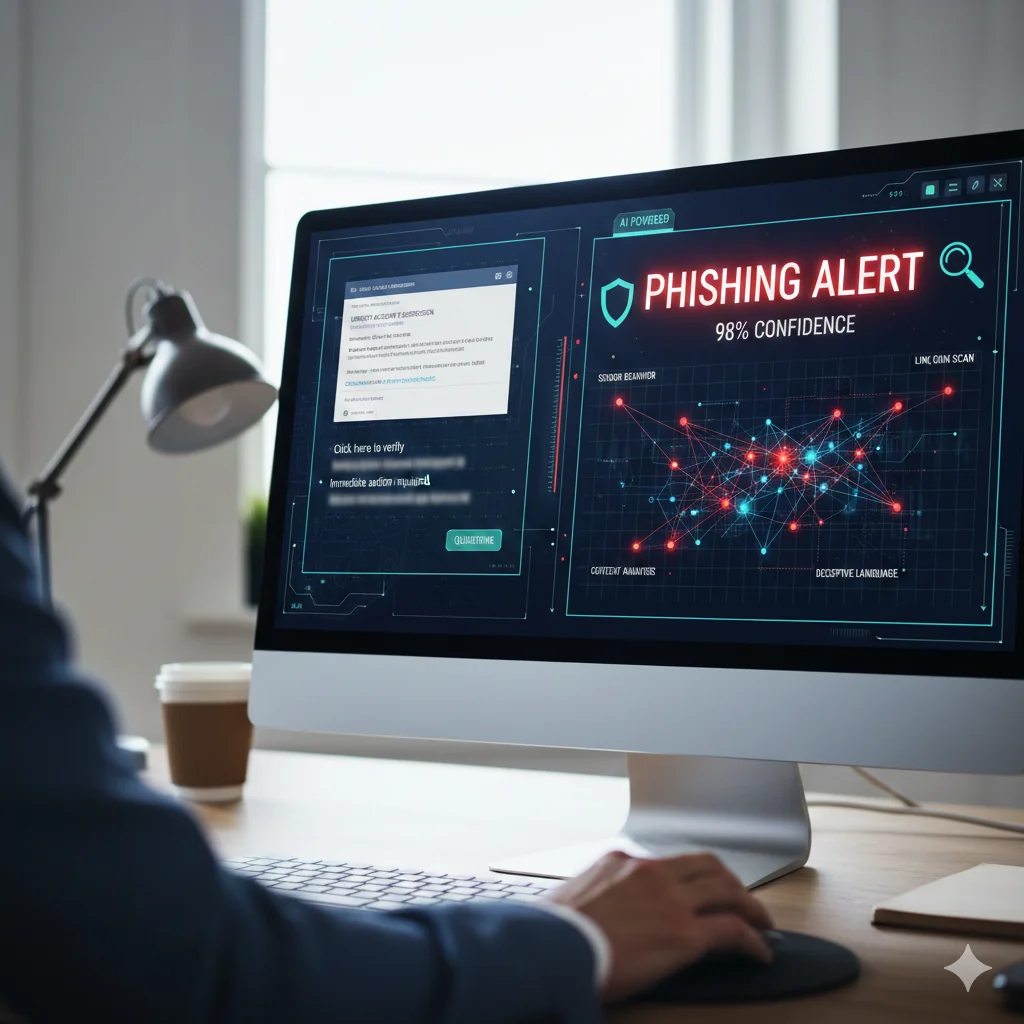
The AI will examine the message for common warning signs: urgency language designed to make you act without thinking, generic greetings instead of your actual name, requests for sensitive information, mismatched or suspicious links, and grammatical patterns typical of scam operations.
PRO TIP: Include the Email Headers
For a more thorough analysis, include the email's full headers. Headers contain the technical routing information that reveals where an email actually came from, not just what the "From" field claims. This is often where scammers trip up—the visible sender might say "support@yourbank.com" but the headers tell a different story.
How to view headers in common email apps:
- Outlook Desktop: Double-click the email to open it in its own window, then click File → Properties. The headers appear in the "Internet headers" box.
- Outlook on the Web: Open the email, click the three dots (…) at the top right, select View → View message details.
- Gmail: Open the email, click the three vertical dots next to Reply, select "Show original."
- Apple Mail (Mac): Open the email, then go to View → Message → All Headers.
Copy the entire header section and include it with your email content when asking the AI for analysis.
What to Ask
Once you've pasted the email (and optionally the headers), you can ask follow-up questions like:
- "Does the sender domain look legitimate?"
- "Are there any suspicious links I should avoid clicking?"
- "What specific tactics is this email using to manipulate me?"
- "How can I verify if this is actually from [company name]?"
The AI can walk you through each concern and explain exactly what makes something suspicious—or confirm that the message appears legitimate.
The Bottom Line
KEY TAKEAWAY
When an email feels wrong, trust your instincts and get a second opinion. Paste the content (and headers if you can access them) into ChatGPT, Claude, or Gemini for a quick security gut-check. It takes 30 seconds and could save you from a costly mistake.
Want to learn more? Check out Practical AI for Humans for more practical guides on using AI effectively.